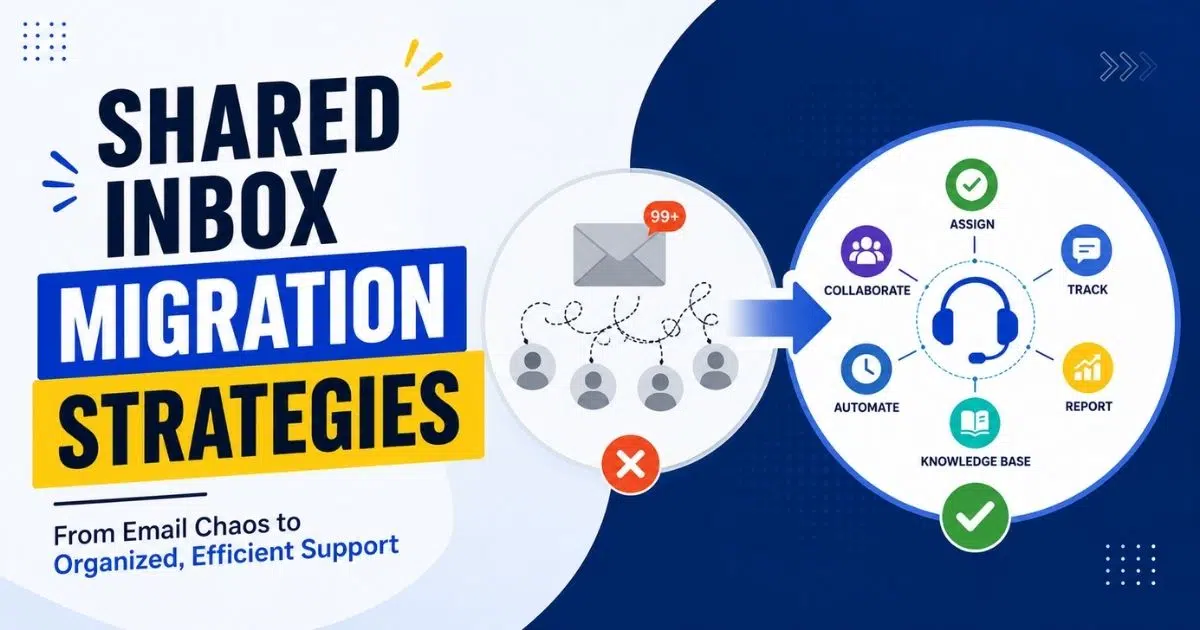
Many organizations reach a point where their email system no longer fits their growth, compliance needs, or platform strategy. Whether that means moving from an on-premises Exchange server to Exchange Online, consolidating tenants after an acquisition, or standardizing across Microsoft 365 and Google Workspace, shared inbox migration sits at the center of the change. These inboxes (support@, billing@, helpdesk@) feed directly into ticket queues, and any gap in their reliability translates into missed customer requests, broken SLAs, and frustrated agents.
This guide walks through practical strategies and execution steps to migrate shared inboxes without losing ticket continuity. It covers migration scenarios from cutover to hybrid coexistence, preparation checklists, common issues, and how EasyDesk helps teams stay productive through the transition.
What Is Shared Inbox Migration For Ticket Management
A shared mailbox is an email address like support@yourcompany.com that multiple users access simultaneously to read, respond to, and manage incoming messages. In ticketing platforms like EasyDesk, every email arriving at a shared inbox becomes a ticket that gets assigned, prioritized, and tracked through resolution. Shared mailboxes can be accessed by multiple users simultaneously, making them the backbone of collaborative support operations.
Shared inbox migration is the process of moving these mailboxes, along with their email content, permissions, aliases, rules, and history, from one source environment to another. This could mean migrating from an on-premises Exchange deployment to Exchange Online, moving between Microsoft 365 tenants, or shifting from Google Workspace collaborative inboxes to Exchange shared mailboxes. The migration must preserve the operational context that drives ticket workflows, not just the raw emails.
The way shared mailboxes work differs between platforms. In Microsoft 365, shared mailboxes are a native mailbox type supporting Full Access, Send As, and send on behalf delegation. They do not require additional licenses unless they exceed 50 GB or need archive mailboxes, litigation hold, or other advanced compliance features. Google Workspace, on the other hand, lacks a true shared mailbox object. Instead, organizations use Google Groups with Collaborative Inbox or Gmail delegation, neither of which fully replicates Exchange shared mailbox behavior.
Key Migration Concepts And Ticketing Impact
Understanding a few core terms helps frame the entire mailbox migration project. A mailbox migration refers to moving email, calendar items, contacts, rules, permissions, and metadata from a source to a destination. Coexistence describes the period when both source and destination environments run simultaneously, allowing incremental synchronization and gradual routing changes. Cutover is the defined moment when all mail flow switches to the new environment and old mailboxes are retired.
In the context of ticket management, mishandling any of these phases can break ticket creation, delay agent responses, or create SLA failures, especially if your email ticketing system is already operating near capacity. Shared mailboxes migrate similarly to regular mailboxes from a technical standpoint, but the operational complexity is far greater. User mailboxes belong to a single individual user with straightforward routing. Shared mailboxes involve multiple agents, layered permissions, automated rules feeding ticket queues, and external-facing aliases that customers rely on. These dependencies make careful planning essential, because well-designed shared inboxes for customer support teams amplify both the risks and rewards of any migration decision.
Data integrity is non-negotiable. Ticket management depends on complete email threads, intact attachments, accurate timestamps, and preserved headers, particularly when you rely on tools that turn emails into trackable tickets for day-to-day operations. Migrating a shared inbox requires careful planning to prevent data loss, because missing or corrupted messages can break ticket history, violate compliance requirements, or cause SLA reporting to produce inaccurate results. Comparative validation of item counts ensures integrity during migration processes, giving administrators confidence that nothing was dropped between source and destination.
Typical source and destination combinations include on-premises Exchange to Exchange Online, Google Workspace to Microsoft 365, and tenant-to-tenant migration between two Microsoft 365 environments. Each combination affects how ticket ingestion works in EasyDesk and how you manage support tickets efficiently once mailboxes have moved. For example, mailbox identifiers change during cross-platform moves, alias addresses may need remapping, and routing rules in EasyDesk that pointed to old mailbox IDs will need updating.
Organizations in regulated industries also need to consider litigation hold and retention policies. Shared mailboxes under legal hold must preserve Recoverable Items folders, journaling data, and metadata throughout the migration. If these obligations are not maintained, future audits or eDiscovery requests may fail, creating legal exposure for the organization.
Shared Inbox Migration Strategies Aligned With Ticket Workflows
Choosing the right migration strategy depends on team size, platform complexity, compliance requirements, and how much risk your ticket operations can absorb. Below are six strategy patterns, each designed for different migration scenarios. The key in every case is to protect ticket routing, maintain SLA timers, and keep agents productive throughout the transition.
Cutover Migration Strategy For Small Teams
A cutover migration moves all shared mailboxes and ticket routing in a single scheduled window. This works best for organizations with fewer than 200 mailboxes, limited regional coverage, and support teams that do not operate around the clock. The approach is straightforward: freeze configurations, communicate a clear cutover time to agents and customers, redirect mail flow, and enable new mailboxes in one pass.
For example, a small startup moving from Google Workspace to Exchange Online might schedule a weekend cutover for support@, billing@, and feedback@ addresses, using the switch as an opportunity to move from basic shared inboxes to a more automated email-to-ticket system. During the freeze window, forwarding rules ensure no emails are lost. After cutover, EasyDesk connections point to the new shared mailbox identities, and agents verify ticket creation with test emails. The goal is to minimize downtime to a matter of hours rather than days.
Phased Shared Inbox Migration By Department
A phased strategy divides migration into waves by department or function. Support moves first, then billing, then internal IT. For each wave, shared inboxes are migrated, EasyDesk routing is updated, agents are trained, and potential issues are resolved before the next group begins. This approach lets teams learn from the first wave and apply those lessons to later phases.
Criteria for selecting the first wave typically include simpler automations, lower external traffic, and smaller mailbox sizes. A mid-size company with 20 departmental shared inboxes might migrate 3 to 5 per wave. You should migrate in phases for large inboxes to manage data and minimize disruption, keeping each wave manageable and ensuring that your ticket creation and management workflows remain stable as each set of queues moves. Plan migrations in batches to maintain mail flow continuity across the entire organization.
Hybrid Coexistence Strategy For Large Enterprises
Large enterprises with thousands of users across multiple geographic zones often cannot afford a single cutover. Hybrid coexistence allows some shared mailboxes to move to Exchange Online while others remain on-premises or in a legacy environment. Customer-facing addresses like support@company.com stay functional throughout, with directory synchronization and mail flow connectors bridging the two systems.
This strategy supports multi-month transitions and requires careful coordination of Active Directory identities, shared address spaces, and federated authentication. The benefit is a smooth transition for agents who adapt gradually to new workflows and EasyDesk integrations, rather than facing an abrupt shift. Large-scale migrations benefit significantly from this pattern.
Tenant To Tenant Strategy During Mergers And Acquisitions
When two organizations merge, they often bring overlapping shared inboxes: support-emea@, support-apac@, or even duplicate support@ addresses across different domains. Tenant-to-tenant migration requires mapping these inboxes to unified queues in the destination tenant. The source tenant and target tenant must be carefully coordinated to avoid duplicate tickets, broken forwarding rules, and lost labels.
For example, merging two support-EMEA@ addresses with different rule sets into a single EasyDesk queue means reconciling permissions, aliases, and historical data. If both inboxes remain active during migration, agents from either organization could respond to the same ticket. Clear ownership rules and temporary forwarding prevent this confusion.
Cloud To Cloud Strategy Between Microsoft 365 And Google Workspace
Organizations standardizing on one platform face the challenge of translating between fundamentally different email architectures. Google labels become Exchange folders; Gmail delegation becomes Full Access and Send As permissions; collaborative inbox assignments become mailbox delegation. Each of these translations affects how tickets are tagged and routed in EasyDesk.
Best practices for this strategy include configuring OAuth scopes and service accounts with proper administrator credentials, running a pilot migration for one or two shared inboxes, and validating that email threads and headers map correctly to ticket fields, especially if you also rely on multi-channel support software that pulls in messages from beyond email. Run a pre-stage pass to migrate older data before final migration, reducing the volume of data that needs to move during the cutover window.
High Compliance Strategy For Regulated Industries
Healthcare, finance, and legal organizations face stricter obligations around shared mailbox data. HIPAA, GDPR, SOX, and FINRA impose requirements on how ticket emails containing sensitive information are stored, transferred, and retained. This strategy adds compliance baselines before migration, chain-of-custody documentation during migration, and validation of holds and retention policies after migration.
Before moving any data, capture the state of litigation hold settings, retention labels, and eDiscovery configurations, and review how existing automated workflows for smarter support might need to be paused or adjusted during the move. After migration, verify that holds remain active and that Recoverable Items folders are intact. Use security tools like Microsoft Purview or Google Vault to confirm preservation. Every configuration change to permissions or routing should be recorded to demonstrate due diligence during future audits.
Planning And Preparing Shared Inbox Migrations
Careful planning is the single most effective way to avoid ticket loss, SLA breaches, and a flood of internal support requests during migration. Before touching any mailbox, build a complete inventory of shared inboxes, map their dependencies, and prepare both the source and destination environments, validating that your chosen shared inbox software can support the future-state architecture.
Assessing Current Shared Inbox And Ticket Architecture
Start by documenting every shared mailbox or collaborative inbox address in your organization. Inventory existing shared mailboxes to understand their sizes and volumes, the number of users with access, existing delegation rules, aliases, connected apps, and email-to-ticket rules connected to EasyDesk. Analyze 30 to 90 days of ticket volume per inbox to understand peak loads and identify which inboxes are most critical, aligning this with SLA management for support teams so high-risk queues get extra protection during migration.
Map patterns like automatic replies, escalation addresses, vendor integrations, and monitoring tools that send alerts into shared inboxes. Understanding whether tickets are created via forwarding, IMAP connections, or API webhooks determines how the migration will sequence. Also note any resource mailboxes (conference rooms, shared calendars) that may interact with ticket workflows.
Defining Migration Scope And Success Metrics
Set clear boundaries on which shared mailboxes, aliases, and distribution groups will migrate, which will retire, and which will consolidate into a new shared mailbox. Define success metrics: zero lost emails, no more than a 5% temporary increase in ticket volume due to migration confusion, and SLA metrics restored to baseline within 48 hours. Document users who need access rights to the shared mailbox before migration so that no one is left without the right permissions after cutover.
Create a RACI ownership model identifying the migration owner, help desk lead, security reviewer, DNS or email service owner, and executive sponsor. Also capture baseline metrics such as average first response time and daily ticket count for post-migration comparison.
Preparing Microsoft 365 And Exchange Online Environments
Verify that the destination environment is ready: domain ownership, DNS records including MX record configuration, SPF, DKIM, DMARC, and accepted domains. Mailbox migration requires valid Microsoft 365 licenses assigned to any user account that will access or manage the new mailboxes. Shared mailboxes do not require licenses unless over 50GB, but exceeding that threshold or requiring archive mailboxes means assigning Exchange Online Plan 2 or an archiving add-on.
Check retention labels, anti-spam policies, and transport rules to ensure they will not block ticket emails. Verify that conditional access policies will not interfere with migration tool access, and double-check how your current EasyDesk features for secure customer support interact with new mailbox permissions and authentication models. Administrator accounts need to be excluded from MFA for migration in many tooling scenarios, so plan for temporary security exceptions with compensating controls. Destination mailbox language must be set before migration to ensure proper formatting of email folders and interface elements.
Preparing Google Workspace Or Other Cloud Sources
For Google Workspace environments, enable the APIs needed for migration, create a service account with domain-wide delegation, and secure credentials. Identify all Google Groups enabled as collaborative inboxes, delegation setups, labels, and filters that must be preserved for ticket routing. Review routing rules and catch-all addresses sending mail into ticket queues, ensuring equivalent behavior can be mirrored in the destination platform.
Note limitations: some Gmail status indicators like starred or pinned messages may not migrate cleanly. The address book and contact data associated with shared accounts may need separate handling. Verify mailbox access before starting the migration process by confirming that the service account can read all target mailboxes.
Designing Communication And Change Management Plans
Internal and external communication prevents confusion that turns into ticket spikes, which is especially important for remote support teams trying to stay aligned across time zones during a multi-stage migration. Agents need to know which shared inboxes are moving, when, and how to access them after the switch. Create runbooks, intranet posts, and internal announcements with clear dates and times.
For customers, consider status page updates and help center banners informing users of scheduled maintenance windows. A simple message like "Support email undergoing scheduled maintenance between 4pm and 6pm UTC" sets expectations and reduces unnecessary follow-up tickets. Prepare quick-reference guides so all the users on the support team can confirm their shared inboxes and EasyDesk queues are connected to the new environment.
How To Execute The Shared Inbox Migration Process
With planning complete, execution follows a structured path from pilot testing through full cutover and validation, mirroring how robust helpdesk ticketing software structures work intake, triage, and resolution. A well-structured migration process preserves data integrity, avoids duplicate tickets, and helps minimize disruption to agents using EasyDesk.
Running Pilot Migrations For Selected Shared Inboxes
Select 2 to 5 shared mailboxes that represent different ticket flows: one high-volume external inbox (customer support), one internal IT inbox, and one with moderate traffic and automations. Migrate these first to uncover edge cases like large attachments, unusual alias formats, or forwarding configurations.
Test end-to-end behavior in EasyDesk: confirm ticket creation, assignment rules, SLA timers, and historical thread visibility. Test emails should be sent to verify proper delivery after migration, and if you expect heavy seasonal peaks, rehearse these tests under load to avoid the kind of winter issues that break ticket systems. Hold feedback sessions with agents to capture usability issues, latency problems, or missing historical emails. Use pilot results to adjust migration tools and schedules before the broad rollout.
Handling Data Integrity And Litigation Hold Requirements
Confirm that all email content, attachments, and headers transfer without alteration. Use dedicated migration tools to preserve folder structures and metadata across source and destination mailboxes. During the pilot and full migration phases, use delta or incremental syncs to capture emails arriving during migration and before cutover.
For organizations with litigation hold obligations, verify that Recoverable Items folders in Exchange Online remain intact. Retention labels must survive the migration, and any items under legal hold must be validated post-migration. Non-email items or legacy artifacts that cannot migrate cleanly should be documented in compliance records. Mailbox migration should not exceed 60GB per migration when using tools like MigrationWiz, which supports mailbox sizes up to 60GB.
Migrating Permissions And Delegation For Support Teams
Export existing permissions before migration: full access, Send As, send on behalf, group membership, and delegate access. Permissions rarely transfer perfectly during shared inbox migration, so plan to reassign previously documented permissions to ensure user access on the new platform. MigrationWiz supports migrating permissions for shared mailboxes, but manual verification remains necessary.
Common pitfalls include forgetting to grant access to newly hired support staff, misaligning distribution list memberships, and overlooking missing permissions for agents who access mailboxes from mobile devices. After migration, have team leads confirm that their teams can open and send from the correct shared addresses using the Outlook web app and desktop clients.
Coordinating With EasyDesk And Other Integrated Tools
EasyDesk connects to shared inboxes via IMAP, Graph API, or Gmail APIs, turning raw email streams into structured ticket creation and management inside an email ticketing system. When mailboxes migrate, connection settings including credentials, OAuth tokens, and mailbox IDs in integration settings may need updating. Identify all dependencies: email-to-ticket ingestion, CRM integrations, monitoring tools that send alerts to shared inboxes, and auto-reply systems.
During migration, consider temporarily reducing automation complexity. Pause non-critical rules while verifying that basic ticket ingestion works in the new environment. Use Modern Authentication for secure mailbox migrations and ongoing API access. Turn off Calendar Assistant during mailbox migrations to avoid unnecessary processing overhead that can slow the transfer. MigrationWiz uses PowerShell for mailbox migration tasks, giving administrators fine-grained control over scheduling and error handling.
Cutover Planning And Execution For Ticket Continuity
Choose the cutover window based on historical ticket data, avoiding product launches, end-of-quarter rushes, or campaign spikes. The cutover sequence typically involves updating the MX record to redirect mail flow, enabling destination mailboxes, and disabling the old ones in a measured sequence. Create migration batches for groups of related inboxes so that each batch can be verified independently.
Use temporary forwarding or journaling to catch messages delivered to legacy systems during DNS propagation. Provide real-time status updates in internal collaboration tools and maintain a clear escalation path for any ticket-impacting issues. With proper execution, teams can approach zero downtime for customer-facing email addresses.
Managing Common Issues And Post-Migration Stabilization
Most mailbox migrations encounter some common issues, and structured responses prevent them from becoming lasting ticket management problems. The first one to two weeks after cutover are a stabilization period where teams monitor error logs, agent feedback, and ticket metrics more closely than usual.
Diagnosing Ticket Creation And Routing Failures
Watch for symptoms like sudden drops in ticket volume, customers complaining of no responses, or tickets landing in unexpected queues. Trace message delivery from sender to shared inbox to EasyDesk, checking mail flow logs in Exchange Online or Google Workspace along the way.
Verify that rules, filters, and spam policies are not diverting tickets into junk or quarantine email folders. Check EasyDesk ingestion logs for connection errors or authentication failures. Send synthetic test emails to each support address and confirm ticket creation in the correct queue.
Resolving Permission And Access Problems For Agents
After migration, agents may find they cannot open shared mailboxes or send from team addresses. Work through a triage checklist: verify group membership in Active Directory, check mailbox permissions (full access, Send As, send on behalf), and confirm client configuration. When agents encounter missing permissions, the fix is usually a quick permission reassignment in the admin portal.
Temporary workarounds include using the Outlook web app while desktop clients update or resync to new profiles. For Google Workspace destinations, ensure delegates are added to collaborative inboxes or that Gmail delegation is properly enabled.
Monitoring Performance And Throttling Constraints
Large migrations stress bandwidth, API rate limits, and server-side performance. Monitor queue processing times, API error codes, and latency between email receipt and ticket creation. Microsoft provides service advisories when shared mailboxes exceed limits or become non-compliant.
If migration throughput is insufficient, contact Microsoft support to request temporary throttling adjustments. Schedule the migration of the largest destination mailboxes separately to avoid overwhelming both network resources and the email system.
Supporting End User Adoption And Training
Agents and internal stakeholders need orientation to any new workflows, mailbox names, or EasyDesk views created during migration. Short training sessions, micro-videos, or quick-start guides focusing on tasks like accessing shared mailboxes and checking ticket queues go a long way. A single 15-minute walkthrough can prevent dozens of confused internal tickets.
Gather feedback through surveys or retrospective meetings, capturing both technical and process-related pain points. Update the internal knowledge base with a summary of known issues and solutions, making it easy for any individual user to self-serve when they encounter something unfamiliar.
Refining Automation, SLAs, And Reporting After Migration
Once the environment is stable, review all automated rules in EasyDesk, transport rules in the mail platform, and any auto-response configurations. Migrated environments may change how headers, tags, or categories appear, requiring updates in ticket routing, SLA policies, and reporting dashboards.
Verify that SLA timers still start correctly when emails arrive and that escalations behave as expected for high-priority queues. Compare post-migration metrics (first response time, ticket volume, backlog size) against pre-migration baselines. This is also the right time to simplify outdated rules, consolidate legacy queues, and review whether a CSV file export of routing configurations should be archived for future reference, while using ticket automation to handle repetitive routing and tagging in the new environment.
EasyDesk Approach To Shared Inbox Migration
EasyDesk treats shared inbox migration as a foundational step toward reliable ticket management and consistent customer experience, closely tied to how you manage support tickets efficiently once the new environment is live. Whether your organization is moving between Exchange Online tenants, shifting from Google Workspace to Microsoft 365, or consolidating shared inboxes after a merger, EasyDesk connects to common mailbox platforms using secure, modern authentication via OAuth and Graph API, replacing older POP and IMAP credential models.
EasyDesk offers flexible email-to-ticket mappings per alias or mailbox, support for multiple inboxes per queue, and routing rules that can be updated gradually during migration, providing the kind of capabilities you would expect from ticketing software built for better customer support. This means you can point support@ to a new shared mailbox while keeping the old one active through forwarding, ensuring a smooth transition with minimal disruption to agents or customers. EasyDesk's onboarding and support teams assist with planning, pilot migrations, and troubleshooting to ensure ticket flows, SLA timers, and historical threads remain intact throughout, similar to how it helped a growing team achieve faster response times and stronger SLAs.
For organizations that expect future platform changes, domain consolidations, or evolving compliance requirements, EasyDesk provides long-term resilience as a secure and efficient customer support platform. Inbox sources can change, but with migration-friendly connections, adaptable routing, and robust reporting, ticket operations stay stable no matter what happens in the email layer underneath, reflecting the broader mission outlined in EasyDesk.
Frequently Asked Questions
How Much Downtime Should We Expect For Shared Inbox Migration?
A well-planned cutover typically keeps true downtime under one to two hours per shared inbox. Most of the heavy lifting, including syncing historical shared mailbox data and configuring the source and destination, happens in the background before the cutover. Forwarding and coexistence techniques during DNS propagation help minimize downtime for customer-facing addresses. Many teams effectively achieve near-zero downtime by staging the migration in advance and only switching routing during off-peak hours.
Do Shared Mailboxes In Exchange Online Require Licenses After Migration?
Shared mailboxes in Exchange Online do not require a license when they remain under 50 GB and do not need archive mailboxes, litigation hold, or advanced compliance features. If a mailbox exceeds 50 GB, you must assign an Exchange Online Plan 2 license or Plan 1 with an archiving add-on. Keep in mind that mailbox migration requires valid Microsoft 365 licenses assigned to any user account interacting with the mailbox migration project, even if the shared mailbox itself does not need one.
Can We Run Our Legacy Ticket System And EasyDesk In Parallel During Migration?
Yes. A parallel run is often advisable. Incoming emails can be copied or forwarded to both systems during migration so you can verify EasyDesk workflows while keeping the legacy system as a fallback. This approach helps validate routing, permission behavior, and SLA timing. The critical precaution is avoiding duplicate responses to the same ticket, particularly when you are also consolidating social media support channels into the same queues during migration. Clear agent instructions and ownership rules for each system prevent customer confusion during the overlap period.
How Do We Roll Back If The Migration Causes Serious Ticket Issues?
Rollback involves redirecting the MX record or mail flow connectors back to the legacy system, re-enabling old shared mailboxes, restoring previous alias settings, and pausing new automations in EasyDesk. This process is simplest when backups of DNS settings, alias lists, permissions, and rules were captured before migration. Maintaining coexistence and delta sync during migration means no data is lost if you need to revert, keeping the rollback path clean and fast.
What Security Controls Should We Prioritize During Shared Inbox Migration?
Prioritize least-privilege access for administrators and migration tools, and use Modern Authentication instead of basic authentication wherever possible. Monitor sign-in logs and audit logs for anomalous mailbox access during migration. Ensure that all shared mailbox data remains encrypted in transit and at rest. Verify that anti-spam and anti-malware policies remain active in the destination so that ticket emails are not delayed or blocked. After migration, rotate any shared administrator credentials and secure service account keys used during the transfer.